



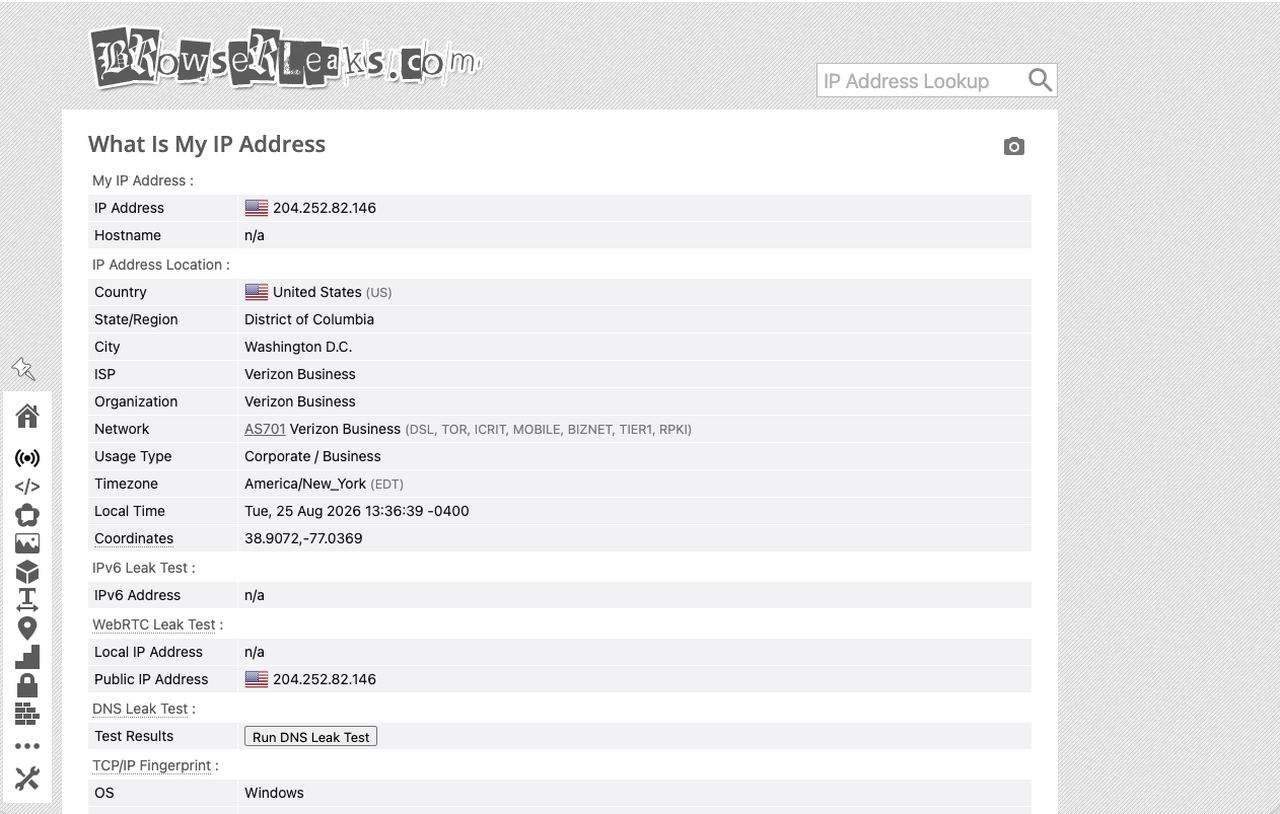
“My proxy is configured, but the detection page still shows my real IP!” — one of the most common questions among proxy users. This guide walks through, in order: why “configured but still showing real IP” happens, what DNS and WebRTC leaks are, and how to check and fix each step. The detection screenshots referenced come from real browser environment tests.
1. First, Confirm: Is It Really a “Leak” or “Not Applied”?
When you see your real IP, run two quick checks:
- Is the proxy actually working? Check whether the IP shown on the detection page equals your proxy’s exit IP. If it isn’t your proxy IP at all, first check the proxy config (port, auth, protocol).
- Is it a leak? If the detection page shows your local/broadband real IP (completely different from the proxy exit), that’s a leak — usually caused by DNS or WebRTC.
2. The Two Most Common Leaks: DNS and WebRTC
DNS leak: mainly means DNS queries are not going through the proxy tunnel as expected, but are handled by the local network, ISP DNS, or other unintended resolution paths. It doesn’t necessarily expose your IP directly, but it means some network requests bypass the proxy’s intended path.
WebRTC leak: WebRTC (the browser’s built-in real-time communication technology) may probe network addresses when establishing connections. Under certain browsers, proxy configurations, and WebRTC policies, a detection page may obtain address information different from the proxy exit — a common cause of “proxy configured but real IP showing.”
3. Troubleshooting Steps (In Order)
Step 1: Test the current environment
Open a browser leak-detection page in the proxy environment and check the IP, DNS, and WebRTC sections. Expected: the page IP matches the proxy exit; DNS and WebRTC show no obvious unexpected address information.
Step 2: Handle WebRTC (the key step)
Browsers have three common WebRTC policies:
| Policy | Behavior | Recommended? |
|---|---|---|
| Real | WebRTC exposes local network IP | ❌ Leaks |
| Disabled | WebRTC detection shows n/a — stricter | ✅ Stricter |
| Replace | WebRTC shows an IP matching the proxy exit | Depends on implementation |
Note: different browsers and extensions handle WebRTC differently — actual results depend on real detection. “Disabled” can serve as a stricter option; whether “Replace/proxy” works depends on the specific tool. In our tests, “Disabled” showed `Local IP = n/a` (no leak), and “Replace” showed the proxy exit IP — please confirm in your own browser environment.
Step 3: Handle DNS
- Key point: confirm DNS queries go through the intended proxy tunnel, proxy tool, or specified resolution path (e.g., a proxy tool’s “proxy DNS only” option)
- Note: using public DNS (e.g., 1.1.1.1, 8.8.8.8) does not by itself solve DNS leaks — if queries still bypass the proxy and go directly from the local network, a leak may still exist
Step 4: Re-test
Re-check after the fix:
- The page IP matches the proxy exit
- DNS queries are handled through the intended path (the resolver’s location can differ from the proxy exit region without necessarily indicating a leak — treat it only as auxiliary information)
- WebRTC shows no abnormal address information (or equals the proxy IP)
All three checks matching expectations means the current browser environment has no obvious leaks across the IP, DNS, and WebRTC dimensions. Note: IP/DNS/WebRTC is only part of the environment — browser fingerprint, Canvas, WebGL, cookies, timezone, etc., belong to other dimensions outside this article’s scope.
4. Common Mistakes
- Mistake 1: thinking a configured proxy is enough — under certain configurations WebRTC may probe addresses different from the proxy exit; it needs a separate check
- Mistake 2: disabling WebRTC breaks normal use — for the vast majority of web access it has no impact; evaluate separately for video-call scenarios
- Mistake 3: checking only one item — IP, DNS, and WebRTC must be checked together; checking only IP misses DNS/WebRTC anomalies
5. FAQ
Q: Why does WebRTC still show an abnormal address when the proxy is on?
A: Many proxy tools only handle HTTP/HTTPS traffic; WebRTC uses UDP and doesn’t necessarily go through the proxy — so the browser’s WebRTC policy and detection results need separate review.
Q: Which is worse, DNS or WebRTC leak?
A: They are different types of issues: DNS leaks involve resolution paths; WebRTC leaks involve browser address probing. There’s no universal “which is worse” — handle each based on actual detection results.
Q: How do I confirm the leak is really fixed?
A: Re-check on the same detection page: page IP = proxy exit IP; DNS queries go through the intended path (results are auxiliary only); WebRTC shows no abnormal address information (or equals the proxy IP).
6. Summary
“Proxy configured but real IP showing” is often an anomaly in WebRTC or DNS, not a proxy failure. Troubleshoot in order: confirm the proxy is working → check WebRTC (disable or replace; actual results depend on detection) → check the DNS query path → re-test. Walk through these steps and the IP/DNS/WebRTC dimensions are basically clean.
For other environment dimensions (device fingerprint, timezone alignment), see Fingerprint Browser vs Proxy IP. When you need a stable exit IP, IPNut‘s Static Residential ISP and Static Datacenter IPs are available by scenario.